Friday, February 25, 2011

Tips for searching using Google

The Google search engine syntax offers a number of options for getting better results. You can search for a specific phrase, search only on a particular site, or exclude pages with certain words. You can use the advanced search page to make use of these or you can use these simple rules of syntax in the normal search field or on Google Toolbar.

To search for a specific phrase
Simply put the words in quotation marks. For example, "Lady Gaga"

To search on a particular site
Type in the keywords that you wish to sort with 'site:' followed by the address of the web pages that you wish to search. For example, if you wished to search this blog for the word Firefox you would enter firefox site:bloodycomputer.blogspot.com

You can also search particular classes of site. If you enter site:.co.uk football, Google will return only pages on sites that end .co.uk that contain the word football.

To omit pages containing certain words
If you preface a word with - then Google will not list pages that contain that word. For example, if you enter the terms linux -ubuntu, you will get a list of pages that contain the word 'linux' but not the word 'ubuntu'

You can use all of these options in a single search. If you wanted to search the BBC news site for all pages that contain the phrase 'Barrack Obama' but not 'Clinton' then you would enter site:bbc.co.uk/news "barack obama" -clinton

Thursday, February 24, 2011

Finding the right place when you need it

Over the past few months, we have launched several new mobile search features for iPhone and Android-powered devices that make it easier to find local businesses. In the US, we launched an “open now” feature which lets you filter local search results to show only businesses that are open right now, based on their listed hours. When you’re hankering for pizza at 1 o’clock in the morning, this can be really handy:

Other local search options available globally include filtering by star ratings (find a highly-rated restaurant for your first date) and by distance (especially handy when you’re on foot).

You may have noticed other improvements as well, like the addition of images, reviews from around the web and bigger buttons for viewing a map or calling a business directly. Each business’s open hours are also shown in the result snippets.

If you haven’t used local search recently, now is a great time to try it out. Just go to www.google.com in your browser, tap on the “Places” link at the top of the page, and do a search. You can also access these features when searching for businesses on Google Maps for mobile on Android devices.

Thursday, February 17, 2011

5 tips for using Blogger on your Android phone

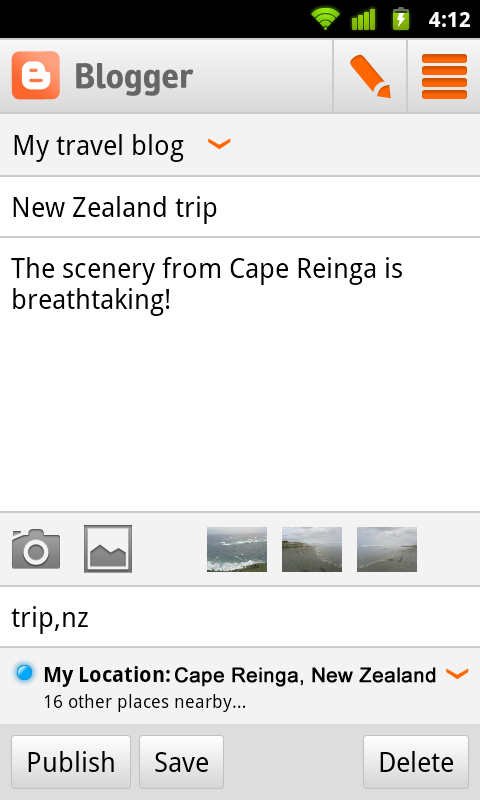
Earlier this month, we announced the first version of the Blogger app for Android on the Blogger Buzz blog. Today, we’d like to share some tips on how you can use the Blogger app to quickly publish posts when you’re on the go.


1. Attach photos as you compose
Take photos using your phone’s camera and instantly add them to your post while you draft. You can also insert photos from your phone’s gallery, all within the Blogger app.

2. Include your current location
With your phone’s GPS, you can let your readers know where you’re blogging from by selecting your current location, no additional typing needed.

3. Share to Blogger
Share videos, products, photos, links and other interesting things you would like to include in your blog via the share button that’s available in many apps, including Google Maps for mobile, YouTube, and your web browser. After you share an item to your Blogger, it will be inserted into new post that’s automatically created for you so that start can composing right away.

4. Switch across multiple Blogger accounts
If you’re an author of more than one blog, you can easily switch between your different accounts by tapping on the orange arrow next to the title of your blog. That way, you can publish articles for each of your blogs to keep your all of your readers up to date.

5. Keep track of published posts and saved drafts
See what you’ve composed in an easy to read list by tapping the list icon located on the top right-hand corner.


We hope that you enjoyed these blogging tips. If you haven’t done so already, you can download the free Blogger app for Android 2.1+ devices from Android Market or scan the QR code below. As always, we would love to hear what you think so please feel free to share your thoughts with us through our feedback form.


Happy blogging!


Wednesday, February 16, 2011

Updates to the Google Reader app for Android

(Cross-posted from the Google Reader blog)

Today we’re excited to announce some updates to the official Google Reader app for Android. Over the last couple of months, we’ve added some of your most-requested features:

Unread count widget - choose any feed, label, person, or “all items” and get the unread count on your home screen. Clicking on the widget takes you to straight to that stream.

  • News ticker widget - if you prefer a bit more information, you can add a larger size widget that cycles through items on any stream you want in Reader. Clicking any headline will take you to the article, while clicking the folder will take you to that stream.


  • That is a lot of widgets

  • Mark previous as read - if you’ve used the mobile version of Reader before and missed this feature, it’s now back! As you scroll down your reading list, hit “Mark previous as read” at any time to only mark things above the screen as read.


  • In addition to these new features, we now have an official Russian translation as well.

    We hope you enjoy the update - give it a try! You can download the app in all countries from Android Market. The Google Reader app is available for devices running Android 1.6 or higher, with widget functionality available for devices on Android 2.2+. 

    Posted by Brian Shih, Product Manager

    Link to Bloody Computer!

    Even though I redesigned this blog some time ago, I still only offered my old link image rather than use the nice new one that my brother designed for me. I have decided that I should make available some new code for anyone who wished to link to this blog.

    Simply paste the following code onto your blog or other website. If you need any help, or advice with this then please leave a comment.


    The link will look like this:


    If you wish to use the old 'ransom note' style image click here.

    Tuesday, February 8, 2011

    Introducing the Google Translate app for iPhone

    (Cross-posted on the Official Google Blog and Google Translate Blog.)

    Back in August 2008, we launched a Google Translate HTML5 web app for iPhone users. Today, the official Google Translate for iPhone app is available for download from the App Store. The new app has all of the features of the web app, plus some significant new additions designed to improve your overall translation experience.

    Speak to translate
    The new app accepts voice input for 15 languages, and—just like the web app—you can translate a word or phrase into one of more than 50 languages. For voice input, just press the microphone icon next to the text box and say what you want to translate.


    Listen to your translations
    You can also listen to your translations spoken out loud in one of 23 different languages. This feature uses the same new speech synthesizer voices as the desktop version of Google Translate we introduced last month.


    Full-screen mode
    Another feature that might come in handy is the ability to easily enlarge the translated text to full-screen size. This way, it’s much easier to read the text on the screen, or show the translation to the person you are communicating with. Just tap on the zoom icon to quickly zoom in.


    And the app also includes all of the major features of the web app, including the ability to view dictionary results for single words, access your starred translations and translation history even when offline, and support romanized text like Pinyin and Romaji.

    You can download Google Translate now from the App Store globally. The app is available in all iOS supported languages, but you’ll need an iPhone or iPod touch iOS version 3 or later.

    Monday, February 7, 2011

    Live Stream: Think Mobile event for mobile marketers

    Looking to reach out to your customers on mobile? Join us for our live streamed discussion on February 10th, 1:05pm EST with Mary Meeker, Partner at Kleiner Perkins, Google’s Dennis Woodside, SVP of Americas Operations, and Jason Spero, Head of Americas Mobile Advertising on the future of mobile and mobile marketing. To learn more about the event and live stream, please visit the Google Mobile Ads blog.

    Posted by Suzanne Mumford, Google Mobile Ads Marketing Team