Friday, October 29, 2010

Find your polling place and follow the US Election on the go

The United States midterm election is on Tuesday, November 2, and we encourage all eligible US citizens to get out and vote. We’ve made it easy to find your polling place and follow election news by visiting our Election Center mobile site at m.google.com/elections on your Android-powered phone or iPhone.


Enter the address where you’re registered to vote, and we’ll show you a Google Map of your polling place. The Election Center site also has information about candidates running for office in your area.


So come Tuesday, let your mobile phone guide you to your polling place, and let sanity guide your vote!

Top Three Web Based Image Editors

If you are using a computer that doesn't have a decent image editor program, then you can make use of a variety of web-based image editors. Having surveyed those that are freely available, I present a list of the top three. Each of these alows you to perform a variety of simple tasks upon an image, such as cropping and resizing. Each also includes the usual drawing tools as well as supporting layers. Please try them out and leave a comment to share your experiences.

Editor by pixlr.com
Editor enables you to create new images or open image files from your computer or from the web in the following formats: bmp, gif, jpg, png, psd and pxd (Editor's own format). You can save images as bmp, jpg, png or pxd to your computer or to Facebook. It offers a good selection of tools and filters.


Sumo Paint 2.0
Sumo Paint also lets you create new images and open files from your computer or the web. You can open files in gif, jpg, png and its own sumo format, and you can save as jpg, png and sumo. It has the best selection of filters and tools of the three here.


Splashup
Splashup will open bmp, gif, jpg and png files not only from your computer and the web, but also from Facebook, Flickr, Photobucket and Picasa. You can save files back to each of these in jpg, png, and the somewhat obscure fxo format. It has the most limited selection of tools and filters of those listed here.

Thursday, October 28, 2010

New in Google Maps for Android: Updated reviews, search filters, and Latitude real-time updating

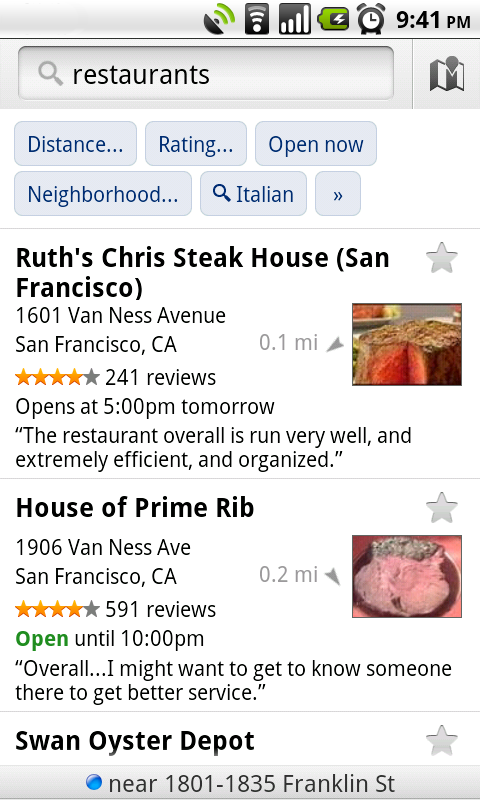
Lately, we’ve been working on giving you even better ways to find nearby places with Google Maps for Android, such as the Places icon and rich Place pages. Today, we are launching Google Maps 4.6 with a new design for Place page reviews, more options to filter search results, and a Google Latitude real-time updating option.

Place page reviews
Now, you’ll see that Place pages on Android Maps share the same new design for displaying reviews as used by Place pages on your computer. You can see:
  • “Reviews from around the web” for highlighting sites that have high-quality reviews about the place.
  • “Reviews from Google users” for reviews posted directly to Google Maps by other users
Filter search results
Of course, you’ll first need to narrow down which Place page reviews to check out. In addition to distance and ratings, you can also filter results for some searches by:
  • Open now
  • Neighborhood
  • Related searches

Find the right place with the updated reviews section (left) or search results filters (right).

Google Latitude real-time updating
In Latitude, you can also choose an experimental “Real-time updating” option from an individual Latitude friend’s profile page to help meet up with them by temporarily seeing faster location updates (friends must have Maps 4.6 and Android 2.2+).

Get Google Maps 4.6 for Android 1.6 and above everywhere Maps is already available. Just search for Google Maps in Android Market (or tap here from your phone).

Visit our Help Center to learn more or tell us your feedback and questions in our Help Forum.

Bring Your Phone to Work Day: Managing Android Devices With Google Apps

(Cross-posted and excerpted from the Official Google Enterprise Blog)

With over 200,000 devices activated each day, Android is seeing rapid adoption, and today we are launching new administrative controls that make it possible to securely manage these devices in the Google Apps environment. With this launch, Google Apps provides a comprehensive mobility solution for all major mobile platforms. You can manage most mobile devices right from the browser, without having to deploy dedicated servers.

Many Android devices feature tight integration with Google Apps, including native applications for Gmail, Google Talk, and Google Calendar, as well as mobile access to Google Docs. Now any employee with an Android device running version 2.2 - personal or company-issued - can access their corporate information while allowing administrators to enforce data security policies such as:
  • Remotely wipe all data from lost or stolen mobile devices
  • Lock idle devices after a period of inactivity
  • Require a device password on each phone
  • Set minimum lengths for more secure passwords
  • Require passwords to include letters and numbers
When the employee leaves the company, the administrator can withdraw access to corporate info, which allows the employee to continue to use their device if it’s their own

These policies can be enforced on devices that have installed the Google Apps Device Policy application, which will be available from Android Market in the next few days. They will be available free to all Google Apps Premier and Education Edition customers in the next few days, and can be accessed from the 'Mobile' tab under 'Service Settings' in the Google Apps control panel.

To learn more about these updates in mobile device management for Google Apps, join us for a live webcast with Mayur Kamat, Google Apps Product Manager, on November 10, 2010 at 9 a.m. PDT / 12 p.m. EDT / 6 p.m. GMT. Register now

Wednesday, October 27, 2010

Gmail in mobile Safari: now even more like a native app

Go to gmail.com from your iPhone and you’ll notice two improvements we’ve rolled out over the past few weeks. First, scrolling is snappier: the speed of scrolling reflects the speed of your swipe gesture. This is helpful for long conversations where a few quick flicks will get you to the information you need much faster than before. Second, the toolbars stay on screen while you’re scrolling rather than moving down into view after each scroll. Being able to access your toolbars from any point on the page should make it easier to triage your email and move around the app.


If you use Gmail in your mobile browser a lot, you may have noticed that we recently tried several different variations of these buttons. We‘ve iterated on the design and made improvements based on your feedback. If you have more suggestions, please post them in our forum, or if you use Twitter, mention #gmailmobile and we'll take a look. If you’re a developer and are interested in learning about the Javascript and HTML techniques we used to do this, we’ll post an article to code.google.com/mobile in the coming weeks.

You can see these improvements by visiting gmail.com from the browser of iPhone and iPod touch devices running iOS4 (English-only for now). And if you like Gmail in mobile Safari, make getting to it easier by tapping the “+” at the bottom of the screen and then “Add to Home Screen.” (Don’t see the new changes yet? Try clearing your cache and refreshing the page.)

Update, 12/8/10 9:10am PST: We promised you a code article. Here it is!

Thursday, October 21, 2010

Voice Search in Russian, Polish, Czech and Turkish

Over the past few weeks we have launched Voice Search in four new languages: Russian, Polish, Czech and Turkish. Try speaking queries like “концерты Юлии Савичевой” (tour dates for Yulia Savicheva), “przepis na pierogi” (recipes for pierogi), “obrázky Hradčan” (pictures of the Prague castle), or “istanbul hava durumu” (weather in Istanbul). Note that you can only speak one language into the app at any time and that you’ll need to change your language setting first.


Voice Search is often preloaded on new Android devices. In that case, all you have to do is press and hold the search button and then speak your query. If you have an Android (2.0 or higher) phone but don’t have Voice Search installed, download the “Voice Search” app from Android Market. If you own an iPhone or other smartphone, you can download Google Mobile App with Voice Search from m.google.com


Monday, October 11, 2010

How to see the Explorer menus in Windows Vista and 7

As promised some time ago, here is the first post about Windows 7 (and Vista).

Users of XP and earlier versions of Windows who now use Vista or 7 will have noticed that the Explorer menus are no longer shown.


Thankfully there is an easy way to remedy this either temporarily or permenantly. To see the menu bar simply press the Alt key.


If you wish to always have the menus visible, select 'Folder options...' from the 'Tools' menu.


On the 'Folder Options' window, go to the 'View' tab and tick 'Always show menus' and then click the 'OK' button.