Looking to reach out to your customers on mobile? Join us for our live streamed discussion on February 10th, 1:05pm EST with Mary Meeker, Partner at Kleiner Perkins, Google’s Dennis Woodside, SVP of Americas Operations, and Jason Spero, Head of Americas Mobile Advertising on the future of mobile and mobile marketing. To learn more about the event and live stream, please visit the Google Mobile Ads blog.
Posted by Suzanne Mumford, Google Mobile Ads Marketing Team
Monday, February 7, 2011

Priority Inbox in Gmail for mobile
If you’ve ever cursed a phone’s tiny screen as utterly inadequate for sifting through an overflowing inbox you’ll be pleased to hear that the Gmail mobile web app now supports Priority Inbox. Priority Inbox helps combat information overload by automatically identifying your important messages so you can focus on those first. Until today it was only available on the desktop and on Android devices.
Now, once you set up Priority Inbox in the desktop version of Gmail, you’ll see Priority Inbox sections when you visit gmail.com from your phone’s browser and click on the ‘Menu’ screen. You’ll also see importance markers in your inbox, so you can quickly identify which messages are important.

This feature is available for most mobile browsers that support HTML5, such as devices running Android 1.5+ and iOS 3+. Currently, you can’t set up Priority Inbox or mark messages as important or unimportant from here. If you have suggestions or want to learn more, visit our Help Center and forum.
Posted by Nathan Bullock, Software Engineer
Now, once you set up Priority Inbox in the desktop version of Gmail, you’ll see Priority Inbox sections when you visit gmail.com from your phone’s browser and click on the ‘Menu’ screen. You’ll also see importance markers in your inbox, so you can quickly identify which messages are important.
This feature is available for most mobile browsers that support HTML5, such as devices running Android 1.5+ and iOS 3+. Currently, you can’t set up Priority Inbox or mark messages as important or unimportant from here. If you have suggestions or want to learn more, visit our Help Center and forum.
Posted by Nathan Bullock, Software Engineer
Wednesday, February 2, 2011
Introducing the Android Market website
Over the past two years, developers around the world have helped make Android Market the go-to place for more than 100,000 apps, games and widgets. Previously, you could only access Android Market directly from your device, but today, we are introducing the Android Market website that lets you browse and search for great apps right from your web browser.

The website makes it easy to discover great new apps with a bigger, brighter interface. You can also send apps directly to your Android device with just a few clicks—no wires needed. We’ve built in new social features, too. You can share apps with your friends through Twitter. And you can read and post app reviews directly to Android Market from the web or from your device.
And what about all those apps you’ve already purchased and downloaded? Sign in to the website with your Google account and click “My Market Account” to see all the apps you’ve purchased or downloaded. It makes managing all your apps quite easy.
The Android Market website was officially unveiled today during an event at Google headquarters where we showcased Honeycomb (Android 3.0), our latest Android release built from the ground up for tablets. Honeycomb has a completely redesigned user interface, with more interactive notifications and widgets, improved multi-tasking, and the latest and greatest Google Mobile services optimized for tablets. We also showed off pre-release applications optimized for Honeycomb, from over 17 developers including:
Stay tuned for more at Mobile World Congress (February 14) in Barcelona where you'll see more than 50 developers demoing their latest phone and tablet apps at the Android booth in Hall 8.

The website makes it easy to discover great new apps with a bigger, brighter interface. You can also send apps directly to your Android device with just a few clicks—no wires needed. We’ve built in new social features, too. You can share apps with your friends through Twitter. And you can read and post app reviews directly to Android Market from the web or from your device.
And what about all those apps you’ve already purchased and downloaded? Sign in to the website with your Google account and click “My Market Account” to see all the apps you’ve purchased or downloaded. It makes managing all your apps quite easy.
The Android Market website was officially unveiled today during an event at Google headquarters where we showcased Honeycomb (Android 3.0), our latest Android release built from the ground up for tablets. Honeycomb has a completely redesigned user interface, with more interactive notifications and widgets, improved multi-tasking, and the latest and greatest Google Mobile services optimized for tablets. We also showed off pre-release applications optimized for Honeycomb, from over 17 developers including:
- AccuWeather
- CNN
- Disney Mobile
- The Economist
- Fuze box
- Glu Mobile
- Google Body
- Grocery iQ
- Intuit
- Ngmoco
- Pulse News
- Quickoffice
- Time Magazine
- TouchType
- Trendy Entertainment
- War Drum Studios
- Weatherbug
- Zynga
Stay tuned for more at Mobile World Congress (February 14) in Barcelona where you'll see more than 50 developers demoing their latest phone and tablet apps at the Android booth in Hall 8.
Tuesday, February 1, 2011
Announcing Google Shopper for iPhone
(Cross-posted on the Google Merchant Blog)
- Learn more about products and read relevant user reviews
- Compare prices at online and local stores
- Save and share products for later consideration
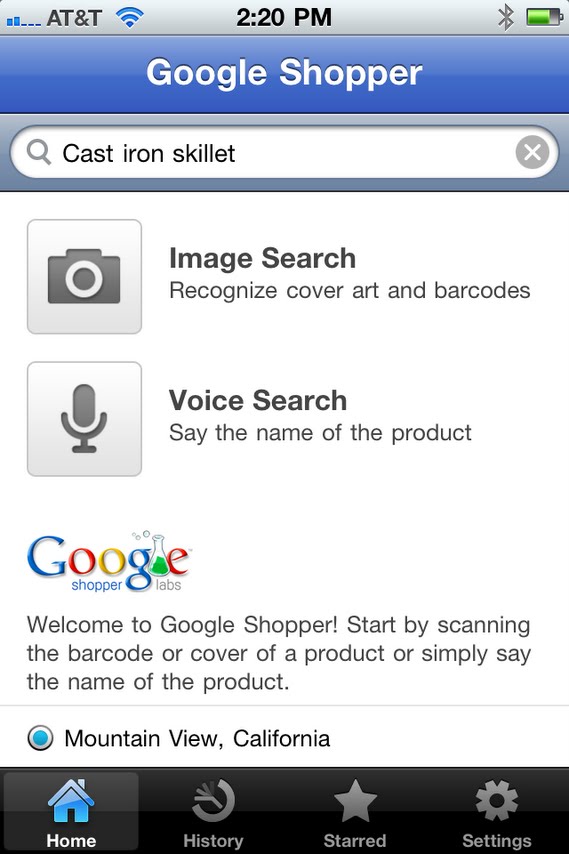

Once you’ve selected a product result, you can compare prices across web retailers, and even find where you can purchase the item nearby, which is especially useful for those of us who are last-minute shoppers. For some retailers, we also provide inventory information so you can see if a particular store branch has the item in stock, has limited availability, or if the item is out of stock and you should head to a different store.


If you’re not sure about making a purchase or are building out a gift list, you can “star” products for future consideration. You can also share items with friends across your social network to let them know about products you love or great deals you've found.
You can download Google Shopper for free in the App Store. Shopper is available for iPhone 3GS and iPhone 4 with iOS 4.0+ in English only for the United States and the UK.
We hope you enjoy shopping with Google Shopper!
Check in with Google Latitude
(Cross-posted with the Official Google Blog)
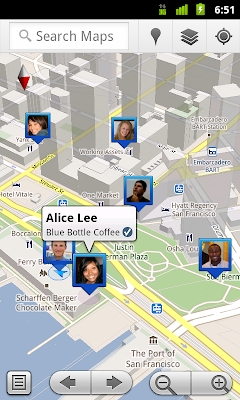
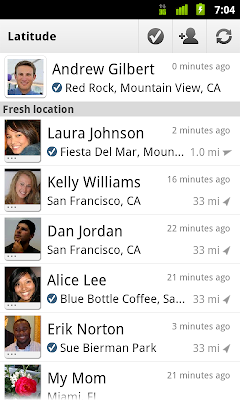
We first introduced Google Latitude to help you stay in touch with your friends and family by making it easy to share where you are. For the 10 million people actively using Latitude each month, this “where” has been a location on a map. Starting today in Google Maps 5.1 for Android, you can also connect that location to a real place by checking in there using Latitude.
Connecting your location with places
You can still use Latitude to automatically update and share your location, but check-ins let you add context to the location—like captions to a photo. For example, I live in San Francisco but often travel around the world. Until today, sharing my location let friends and family know if I was across the globe or in their neighborhood. Now, check-ins let them see the cool restaurant I’m trying in Taipei or join me for a latte at the cafe nearby.
Not your typical check-ins
Because you can use Latitude to automatically detect your location, we’ve added a few twists to checking in to make it really easy:
Explore your world one check-in at a time
Latitude is built right into Google Maps for Android so check-ins work across Latitude and Maps seamlessly. For example, check in at that new hamburger joint, and you’ll see its Place page with reviews to help you order. When friends check in at a place, you can go straight from their Latitude profile to its Place page to learn about it, fire up Google Maps Navigation (Beta) for turn-by-turn directions to them, and more.
You can also check in at a favorite place to earn special status there; you’ll see if you’ve become a “Regular,” a “VIP” or a “Guru” on its Place page. Keep checking in to hold onto your status or reach the next level.

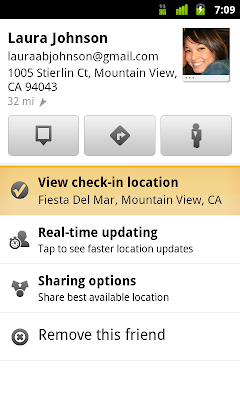
Of course, we thought carefully about how to make checking in to places quick and easy while giving you control over your privacy. Just like when sharing your location with Latitude, checking in is 100% opt-in, and you can choose to share any check-in with your friends on Latitude, publicly on the web and your Google profile, or just yourself. Learn more about checking in and managing your check-ins with Latitude in the Help Center. Coming later this week, you’ll also be able to see your complete history of check-ins using the optional History tab at google.com/latitude from your computer.
Update (2/11/2011): You can now see check-ins and your own check-in history at google.com/latitude from your computer.


Start checking in by downloading the latest Google Maps from Android Market (on Android 1.6+; tap here if you're on your phone) and then joining Latitude from the main menu. You can check in everywhere Maps and Latitude are already available. If you’re using the new Latitude app for iPhone, you’ll see your friends’ check-ins, and we’ll update the app soon so you can check in too.
Just the beginning...
Checking in from Latitude is just one step in helping you connect the places you go with the people you care about. We believe in letting you use or share your location however you like, and we’re working on making location and check-ins useful in more places—across Google and the web.
Posted by Joe LaPenna, Software Engineer, Google Latitude Team
We first introduced Google Latitude to help you stay in touch with your friends and family by making it easy to share where you are. For the 10 million people actively using Latitude each month, this “where” has been a location on a map. Starting today in Google Maps 5.1 for Android, you can also connect that location to a real place by checking in there using Latitude.
Connecting your location with places
You can still use Latitude to automatically update and share your location, but check-ins let you add context to the location—like captions to a photo. For example, I live in San Francisco but often travel around the world. Until today, sharing my location let friends and family know if I was across the globe or in their neighborhood. Now, check-ins let them see the cool restaurant I’m trying in Taipei or join me for a latte at the cafe nearby.

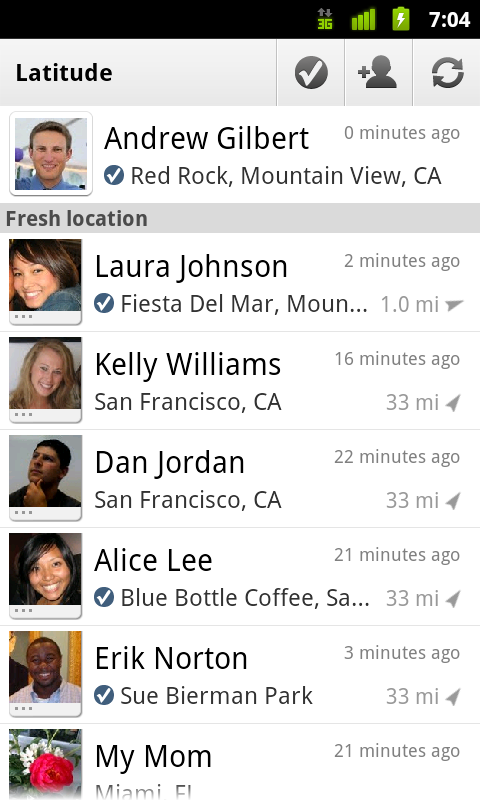
See where your friends are on a map and where they’re checking in.
Because you can use Latitude to automatically detect your location, we’ve added a few twists to checking in to make it really easy:
- Notifications: Turn on check-in notifications in Latitude’s settings and get a notification to check in at a nearby place once you arrive. Never forget to check in again.
- Automatic check-ins: Choose to automatically check in at specific places you designate, and you’ll be checked in when you’re there. You can talk to friends or finish your bagel without fumbling with your phone.
- Check out: Once you leave, Latitude knows to automatically check you out of places so friends aren’t left guessing if you’re still there.
Explore your world one check-in at a time
Latitude is built right into Google Maps for Android so check-ins work across Latitude and Maps seamlessly. For example, check in at that new hamburger joint, and you’ll see its Place page with reviews to help you order. When friends check in at a place, you can go straight from their Latitude profile to its Place page to learn about it, fire up Google Maps Navigation (Beta) for turn-by-turn directions to them, and more.
You can also check in at a favorite place to earn special status there; you’ll see if you’ve become a “Regular,” a “VIP” or a “Guru” on its Place page. Keep checking in to hold onto your status or reach the next level.

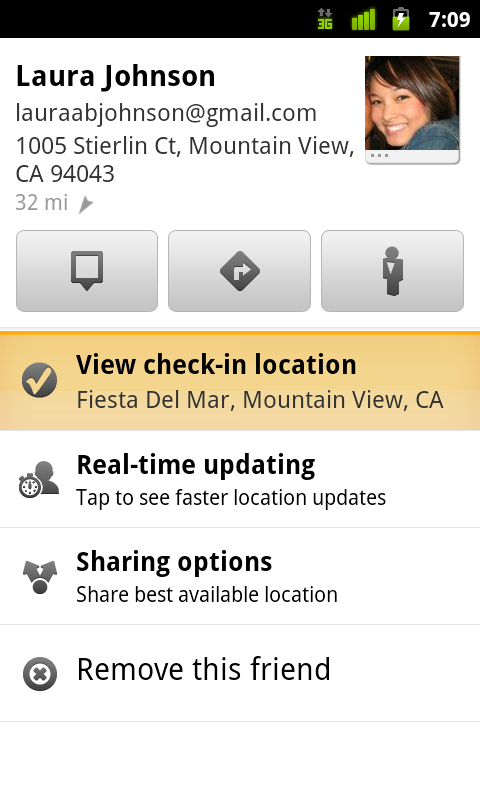
Latitude check-ins are built right into Google Maps and Place pages.
Update (2/11/2011): You can now see check-ins and your own check-in history at google.com/latitude from your computer.


Choose options for individual check-ins or turn on and off notifications in the Latitude settings.
Start checking in by downloading the latest Google Maps from Android Market (on Android 1.6+; tap here if you're on your phone) and then joining Latitude from the main menu. You can check in everywhere Maps and Latitude are already available. If you’re using the new Latitude app for iPhone, you’ll see your friends’ check-ins, and we’ll update the app soon so you can check in too.
Just the beginning...
Checking in from Latitude is just one step in helping you connect the places you go with the people you care about. We believe in letting you use or share your location however you like, and we’re working on making location and check-ins useful in more places—across Google and the web.
Posted by Joe LaPenna, Software Engineer, Google Latitude Team
Sunday, January 30, 2011
Where have all my desktop icons gone?
Windows offers the facility to hide all the icons on your desktop. The default option is to show all desktop icons, but this may be switched off either by accident or on purpose. To change this setting simply right-click on the desktop and a menu will appear.
On Windows XP you need to open up the 'Arrange icons by' sub-menu and then either tick or untick 'Show Desktop Icons'.
 On Windows Vista and 7 the option is available in the 'View' menu.

On Windows XP you need to open up the 'Arrange icons by' sub-menu and then either tick or untick 'Show Desktop Icons'.
 On Windows Vista and 7 the option is available in the 'View' menu.
Tuesday, January 25, 2011
Port your existing mobile number to Google Voice
(Cross-posted from the Google Voice Blog)
867-5309 could be one of the most iconic phone numbers of all time, but it’s not the only number that a lot of us remember by heart. Many of us have a phone number that we've shared with family, friends, and contacts over the years and are reluctant to let go.
One of the most frequent requests we hear from people who use (or want to use) Google Voice is that they’d like to get all of Google Voice’s features without having to give up their long-time phone numbers.
Today, we’re excited to announce that Number Porting is available for all existing Google Voice users. This means you can make the mobile number you’ve always used your Google Voice number, so it can ring any phone you want—or even your computer.
To get started with Number Porting, log in to your Google Voice account, visit the Settings page and click on “Change / Port” next to your Google Voice number.

Porting your number to Google Voice costs $20 and is usually completed within 24 hours. You may incur additional charges, including early termination fees, from your wireless carrier. Contact your carrier to get more details about the charges applicable to you.
After porting your number to Google Voice your mobile service plan will be cancelled, and there are a couple of steps that you’ll have to take to continue making and receiving calls on your mobile device. For more detailed instructions on how Number Porting works and to find tips for making the process as smooth as possible, visit the Google Voice Help Center.
Number Porting is currently available for existing Google Voice users and will become available to new users within the next few weeks, and at this time, Google Voice is available in the U.S. only
Update (1:15PM): Included more details about the porting process.
867-5309 could be one of the most iconic phone numbers of all time, but it’s not the only number that a lot of us remember by heart. Many of us have a phone number that we've shared with family, friends, and contacts over the years and are reluctant to let go.
One of the most frequent requests we hear from people who use (or want to use) Google Voice is that they’d like to get all of Google Voice’s features without having to give up their long-time phone numbers.
Today, we’re excited to announce that Number Porting is available for all existing Google Voice users. This means you can make the mobile number you’ve always used your Google Voice number, so it can ring any phone you want—or even your computer.
To get started with Number Porting, log in to your Google Voice account, visit the Settings page and click on “Change / Port” next to your Google Voice number.

Porting your number to Google Voice costs $20 and is usually completed within 24 hours. You may incur additional charges, including early termination fees, from your wireless carrier. Contact your carrier to get more details about the charges applicable to you.
After porting your number to Google Voice your mobile service plan will be cancelled, and there are a couple of steps that you’ll have to take to continue making and receiving calls on your mobile device. For more detailed instructions on how Number Porting works and to find tips for making the process as smooth as possible, visit the Google Voice Help Center.
Number Porting is currently available for existing Google Voice users and will become available to new users within the next few weeks, and at this time, Google Voice is available in the U.S. only
Update (1:15PM): Included more details about the porting process.
Subscribe to:
Posts (Atom)